ETS2 Map Mod Compatibility: How to Combine Map Mods Safely
By GameModeShop Editors4 min read
Quick answer
Pick one base map, usually ProMods, and only add maps whose authors state they are compatible with it on your game version. Check every required official DLC, install connector mods where two maps meet, follow each author's published load order, and test the combination on a fresh profile before using it for a career.
The steps at a glance
- 1Choose a base map. Pick one large map project as the base of your setup, most commonly ProMods, and read its requirements.
- 2Check DLCs and game version. Confirm you own every official map DLC each mod requires and that each mod supports your current game version.
- 3Confirm compatibility. Add only maps whose authors explicitly say they work with your base map, and note any connector mods they require.
- 4Install from official pages. Download each map, connector and patch from its official page and place the files in Documents\Euro Truck Simulator 2\mod.
- 5Order the mods. In the Mod Manager, follow each author's published order, with connectors and patches above the maps they join.
- 6Test on a fresh profile. Create a new profile, drive across the borders between maps, and check game.log.txt for errors before starting a real career.
Why map mods are different
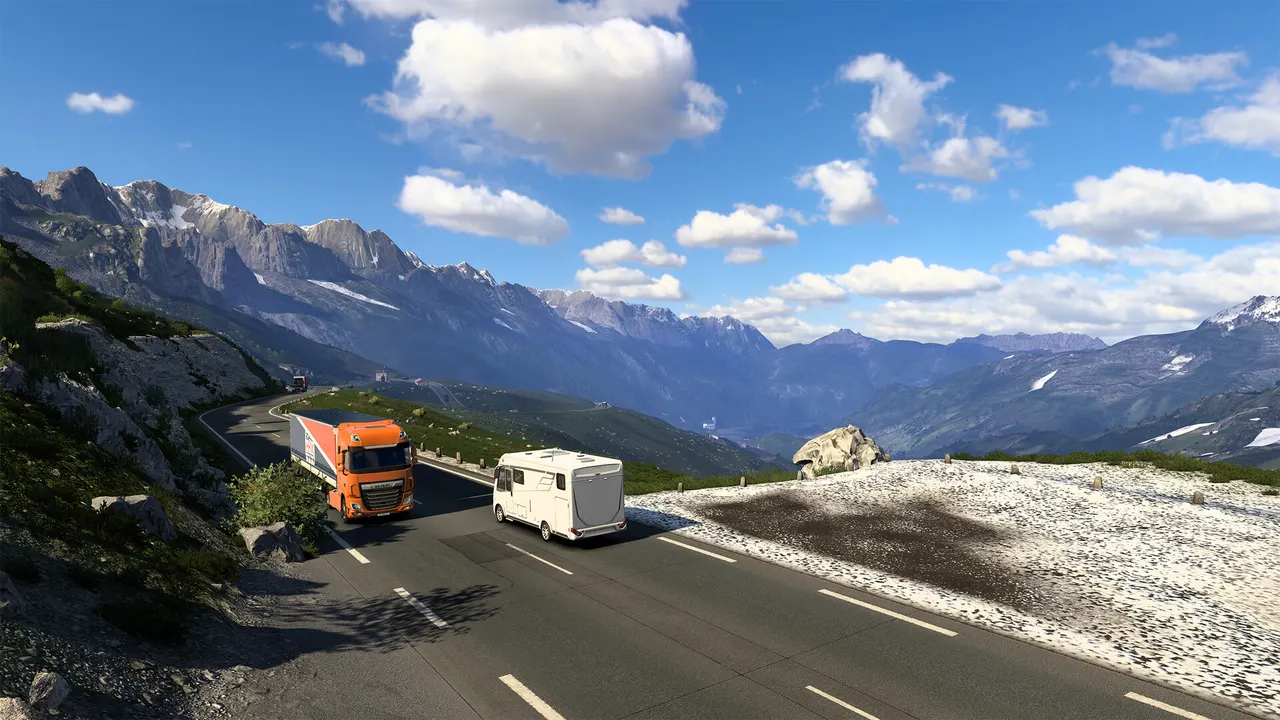
Most ETS2 mods add a truck or swap a sound. Map mods do something much bigger: they replace or extend the game's road network, cities, prefabs and the world map itself. Only one version of any piece of road can exist, so two map mods that touch the same area cannot both win.
That is why combining maps is the hardest part of ETS2 modding. Get it right and you can drive across a Europe much larger and more detailed than the base game. Get it wrong and you get crashes on load, roads that end in mid-air, or a profile that will not open. If you are new to ETS2 mods in general, start with our ETS2 mod installation guide and come back here.
The three ways map mods relate to each other
Overlapping maps. Two mods that both rework the same country or region. These usually conflict outright. Pick one.
Neighboring maps. Mods covering different areas, for example a big Western European map and a separate map of Russia or the East. These can often coexist, but where their roads meet, something has to join them.
Connectors and patches. Small mods whose only job is to link two maps or resolve a known clash. The best-known example is Road Connection, which links ProMods with RusMap and other maps. Connectors only work for the exact combination and versions they were made for.
Step 1: Choose a base map
Pick one large map as the base of your setup. For most players that is ProMods, the largest and most widely supported community map for ETS2. Other map authors commonly state compatibility relative to ProMods, which makes it the easiest base to build on.
Download ProMods only from its official website, and read its requirements page. It requires several official SCS map DLCs, and it is split into multiple files that must all be active.
Step 2: Check DLCs and game version
Two things kill most map combinations before you even start:
- Missing DLC. Many map mods build on official map expansions. If a mod needs a DLC you do not own, it will not load correctly. Each map lists its DLC requirements; check all of them.
- Version mismatch. Map mods are tied closely to the game version. After a major SCS update, maps may need weeks to catch up. Check that every map in your planned combo supports your current version. If one does not, either drop it or use the previous game version from the game's Steam Betas tab until it is updated.
Step 3: Confirm compatibility before downloading
For every map you want to add, find a clear statement from its author that it is compatible with your base map, and which connector (if any) it needs. Do not rely on comments or videos claiming a combo "works fine." Map combinations that half-work can look fine for an hour and then crash at a specific border.
Community-maintained map combo lists exist, and they are useful starting points, but treat the map authors' own pages as the final word, because they are updated when versions change.
Step 4: Install and order
Place all map files in Documents\Euro Truck Simulator 2\mod. Then, in the Mod Manager on a new profile, activate them and set the order. In ETS2, mods higher in the active list take priority. For maps:
- Follow published orders exactly. ProMods and other large maps publish the order their own files must be in. Keep those files together and in that order.
- Connectors and patches go above the maps they connect, so their fixes win.
- Non-map mods such as trucks and sounds usually do not care where they sit relative to maps. Traffic, weather and graphics mods that touch map assets can, so check their pages.
If two authors give contradictory instructions, the connector author's instructions for that specific combination usually take precedence, because they were written for it.
Step 5: Test on a fresh profile
Create a new profile for every new map combination. Starting fresh avoids two problems: existing profiles may have your truck, garages or jobs placed on roads the new map changes, and removing a map later from an existing profile can leave it unloadable.
Then test deliberately:
- Load the profile and wait for the world to finish loading.
- Open the world map and check that the extra regions appear.
- Drive, or take a job, across each border where two maps meet. That is where missing connectors show up as dead ends or gaps.
- After any crash, open
game.log.txtinDocuments\Euro Truck Simulator 2. Errors near the end usually name the file or map at fault.
Common symptoms and what they mean
| Symptom | Likely cause |
|---|---|
| Crash while loading the profile | Map not updated for your game version, or missing DLC |
| Roads ending in empty space at a border | Missing or outdated connector |
| Missing cities or prefabs | One map file inactive or in the wrong order |
| World map shows gaps or wrong background | Map files ordered incorrectly |
| Profile crashes after removing a map | Truck or garage was inside the removed area |
Our take
Build around ProMods, add at most one or two other maps with explicit compatibility and the connector they name, and stop there until that combination has survived a few hours of driving. The temptation with ETS2 is to grab every map mod you have heard of. In practice, the most enjoyable setups are the ones that keep working across a whole career, and those are almost always small.
Keep a dedicated profile per map combination and never experiment on your main career. And when SCS ships a big update, do not rush to it. Stay on the previous branch until every map in your combo is updated; there is no mod you lose by waiting a few weeks.
For the wider ETS2 picture, see our Euro Truck Simulator 2 hub. If you enjoy this kind of ordering puzzle, our RimWorld load order guide tackles the same problem in a very different game.
People also ask
Can I use two ETS2 map mods together?
Only if they are designed to fit together. Maps that edit the same region conflict, while maps covering different regions often need a connector mod to join their roads. Each map's page usually lists what it is compatible with.
What order should ETS2 map mods be in?
Follow the order the map authors publish. As a rule, connectors and compatibility patches sit above the maps they join, and each map's own files stay together in the order its author specifies.
Why does my ETS2 map combo crash on loading?
Common causes are a map that has not been updated for your game version, a missing required DLC, a missing connector, or files in the wrong order. game.log.txt in your Documents folder usually names the failing file.
Do I need a new profile for map mods?
It is strongly recommended. Adding maps to an existing profile can work, but removing them later can strand your truck or garages on roads that no longer exist.
Everything else about modding Euro Truck Simulator 2 lives on one page.
Open the Euro Truck Simulator 2 hub