How to Install Terraria Mods with tModLoader (Workshop & Multiplayer)
By GameModeShop Editors4 min read
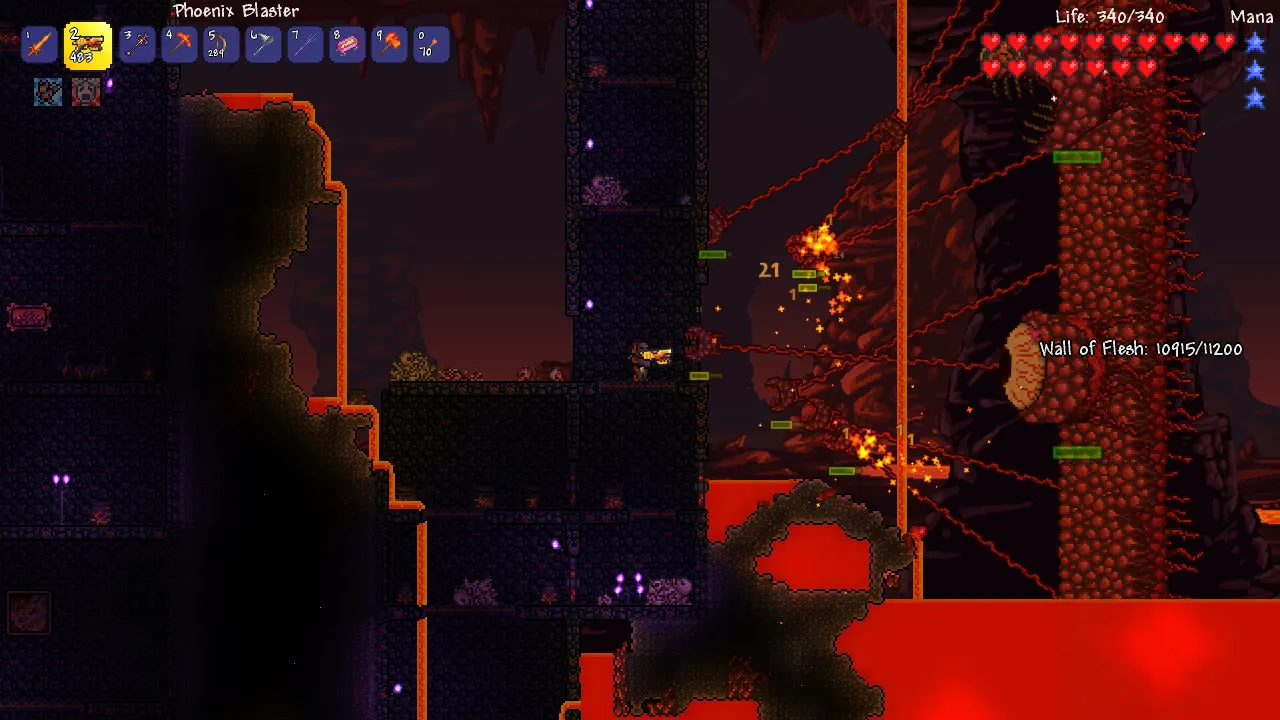
Quick answer
Install tModLoader, the free Steam app for Terraria owners, and launch it. Open its Workshop menu, download the mods you want, then enable them in Manage Mods and reload. Create a new character and world for big content mods. For multiplayer, everyone runs tModLoader with the same mods, which a shared mod pack makes easy.
The steps at a glance
- 1Install tModLoader. Install the free tModLoader app from the Steam store; it requires owning Terraria on Steam.
- 2Launch it once. Start tModLoader from your library so it creates its save, mod and config folders.
- 3Download mods. Open Workshop, then Download Mods, and download what you want, or subscribe on the Steam Workshop page.
- 4Enable and reload. Open Manage Mods, enable each mod and any dependencies, then reload mods.
- 5Start a fresh character and world. Create a new character and world for content mods so you experience their progression properly.
- 6Share a mod pack for multiplayer. Export your enabled mods as a mod pack and have friends use the same list before joining your server.
What you need
Terraria mods run through tModLoader, a community-made mod loader distributed as a free, separate app on Steam for anyone who owns Terraria there. It is not a patch to your Terraria install. You launch tModLoader from your library instead of Terraria, and it keeps its own characters, worlds and settings.
That separation is the main reason Terraria is such a safe game to mod. Your vanilla saves stay untouched, and if something goes wrong you can always launch plain Terraria. For an overview of the scene and which categories of mods to try first, see our Terraria hub.
Step 1: Install tModLoader
Search for tModLoader in the Steam store and install it. It shows up as its own entry in your library. Make sure there is enough free disk space and memory headroom for mods; big content mods are large.
Launch it once and let it reach the main menu. It creates its folders under Documents\My Games\Terraria\tModLoader, with its own Players and Worlds folders.
Step 2: Download mods
You have two equivalent options:
- In game: from the main menu, open Workshop, then Download Mods. You can search, sort and see each mod's description and dependencies. Click download on the ones you want.
- In Steam: open the tModLoader Workshop page in Steam and Subscribe to mods. They download the next time Steam syncs and appear in tModLoader.
Mods that depend on other mods list those dependencies. tModLoader generally fetches required dependencies with the mod, but check the list in Manage Mods afterward.
Stick to the Workshop. It is the official distribution channel, mods update automatically, and you avoid outdated or tampered files from re-upload sites.
Step 3: Enable and reload
Open Workshop, then Manage Mods. Every downloaded mod is listed with an on or off toggle. Enable the ones you want, including their dependencies, then use Reload Mods. tModLoader unloads and reloads everything, which takes longer the more mods you have.
If a mod fails during loading, tModLoader shows which one failed and disables it, so you can continue without it. The full error goes into client.log in tModLoader's logs folder, which you can find through Steam with Manage, then Browse local files.
Most mods also have settings under Mod Configuration in the settings menu. Read through them once; many mods ship with features you might want to turn off.
Step 4: Start fresh for content mods
For quality-of-life mods like Recipe Browser or Magic Storage, any character and world work fine. For content mods like Calamity or Thorium, create a new character and a new world. These mods add progression from the very start of the game, including new ores, biomes and early bosses. A late-game character skips all of it, and an old world may lack newly generated ores and structures.
Step 5: Multiplayer
Modded multiplayer works well when everyone runs the same mods.
- The host enables the agreed mods and starts a world through Multiplayer, then Host & Play, or runs a dedicated tModLoader server.
- Everyone else needs tModLoader with the same mods and versions enabled. When the sets differ, tModLoader tells you which mods do not match.
- To make this painless, use Mod Packs in the Workshop menu to save your enabled mods as a pack and share the list with your group.
Updates are the usual source of trouble. If one person's Workshop mods update and another's do not, the versions stop matching. Have everyone restart Steam and tModLoader before a session.
Keeping mods updated
Workshop mods update automatically through Steam, which is convenient but means your setup can change between sessions. Two habits help:
- Read the change notes on the Workshop page of any big content mod before starting a session after an update. Large updates sometimes change progression or ask you to start a new world.
- Do not unsubscribe in the middle of a world. Unsubscribing removes the mod files, which has the same effect as disabling the mod: its items and tiles turn into placeholders.
If you want a setup that never changes, finish your playthrough before letting major content updates in, or keep your mod pack and note which versions it ran.
Troubleshooting
- The game crashes or runs out of memory while loading. Disable large mods one at a time. Very large packs can exceed available memory.
- A mod is missing from the browser. It may only support an older tModLoader version. tModLoader keeps legacy branches on Steam for old mods, but you cannot mix old and current mods in one setup.
- A world shows odd placeholder items. A mod used in that world has been disabled. Re-enable it, or accept the placeholders.
- Everything broke after an update. Wait a few days for mod authors, and check the mod's Workshop page for notes.
Our take
Use the in-game Workshop menu, not manual files, and treat Mod Packs as essential rather than optional. A saved pack is a snapshot of a working setup, it makes multiplayer trivial, and it lets you switch between, say, a Calamity run and a light quality-of-life setup in seconds.
Install fewer mods than you think you need. The best first modded run is a handful of quality-of-life mods plus one content mod, which we explain in our piece on your first modded Terraria playthrough. The Workshop makes it tempting to grab every popular mod in one go, and that is how people end up with ten-minute load times and progression that makes no sense.
If you also play other cozy-but-deep games, our Stardew Valley mod installation guide covers SMAPI, which fills the same role there.
People also ask
How do I get tModLoader?
Search for tModLoader in the Steam store and install it. It is free for anyone who owns Terraria on Steam and appears as its own game in your library.
Can I install Terraria mods without Steam Workshop?
tModLoader mods are distributed through the Steam Workshop, which is the official source. Avoid .tmod files from re-upload sites, which may be outdated or altered.
Why won't my Terraria mods load?
Usually a mod is not updated for your tModLoader version, a dependency is missing, or memory runs out with a very large mod list. tModLoader names the failing mod when loading stops, and its client.log has the full error.
Can I use my vanilla Terraria character in tModLoader?
tModLoader keeps separate save folders. You can copy a vanilla character file over, but for big content mods a fresh character gives a much better experience.
Everything else about modding Terraria lives on one page.
Open the Terraria hub