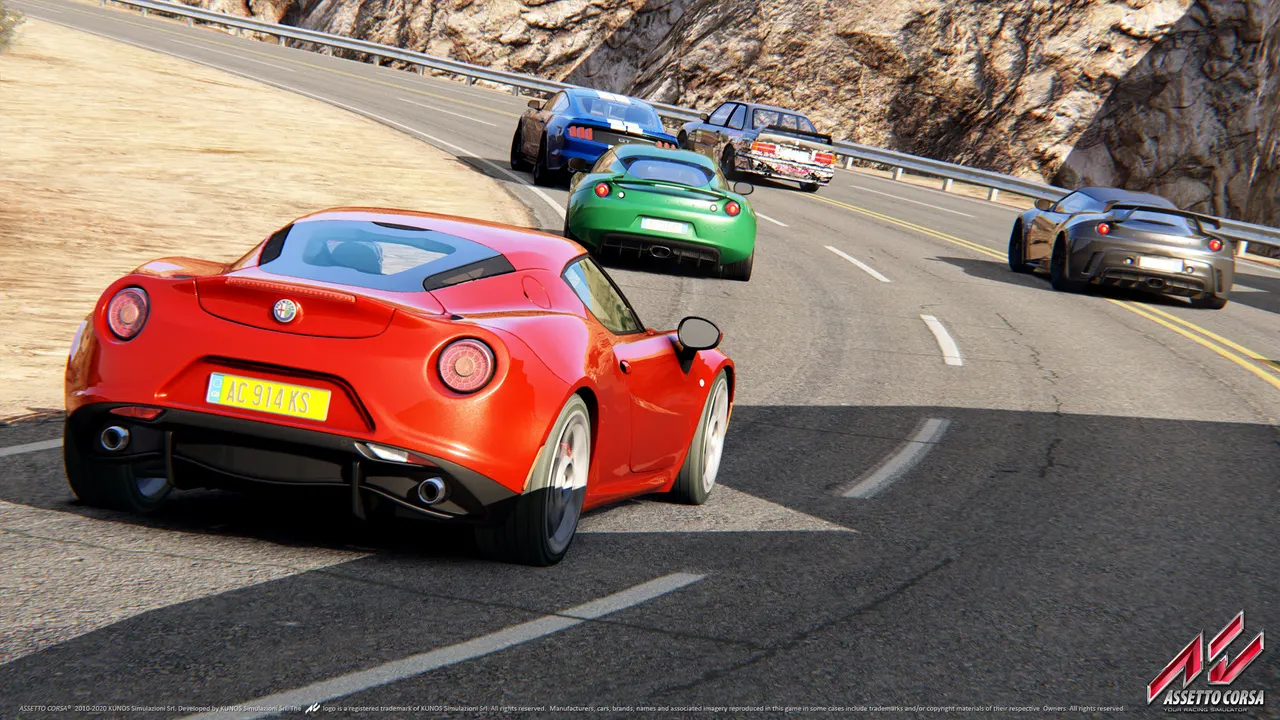
How to Install Assetto Corsa Mods (Cars, Tracks & Apps)
By GameModeShop Editors4 min read
Quick answer
Install Content Manager and point it at your Assetto Corsa folder, then install Custom Shaders Patch from its settings. To add a car or track, drag the downloaded archive onto Content Manager and confirm the install. By hand, cars go in content\cars and tracks in content\tracks inside the game folder. Then pick the new content in Content Manager and drive.
The steps at a glance
- 1Run Assetto Corsa once. Launch the game from Steam once so its folders and settings exist.
- 2Install Content Manager. Download Content Manager from its official site, extract it to its own folder and point it at your Assetto Corsa folder.
- 3Install Custom Shaders Patch. In Content Manager's settings, open the Custom Shaders Patch section and install it.
- 4Download a car or track. Get a mod from OverTake (formerly RaceDepartment) or the creator's own page.
- 5Drag it onto Content Manager. Drop the archive onto the Content Manager window and confirm the install prompt.
- 6Drive and check. Select the new content in Content Manager, start a practice session and make sure it loads correctly.
Before you start
This guide covers the original 2014 Assetto Corsa on Steam, not Competizione or newer Kunos games. Launch it once from Steam so its folders exist, and find your game folder: right-click the game in Steam, choose Manage, then Browse local files. It's usually steamapps\common\assettocorsa.
If you want the bigger picture first, the Assetto Corsa hub explains the scene. For a deeper look at the two tools this guide relies on, read Content Manager and CSP explained.
Step 1: Install Content Manager
Content Manager replaces the stock launcher with one that understands mods.
- Download it from its official site. Avoid mirrors.
- Extract it to a folder of its own, such as one in your Documents, rather than a protected system folder.
- Run it. On first launch it asks for your Assetto Corsa folder; point it at the folder containing
AssettoCorsa.exe. - Explore once. The Drive tab sets up races, the Content tab lists cars, tracks and more, and Settings holds everything else.
Some players replace the stock launcher so Steam opens Content Manager directly. It's optional; launching Content Manager from its own shortcut works just as well.
Step 2: Install Custom Shaders Patch
Most modern mods assume Custom Shaders Patch (CSP), so install it before your first mod.
- In Content Manager, open Settings, then the Custom Shaders Patch section.
- Install the version offered. Content Manager downloads and applies it.
- Optionally add a weather mod like Sol for dynamic skies and weather. Install it like any other mod (Step 4) and enable it through CSP's weather settings.
Content Manager also lets you switch CSP versions later, which helps if a particular mod misbehaves after an update.
Step 3: Download mods from good sources
Get cars and tracks from OverTake (formerly RaceDepartment) or the creator's own site or Patreon. Read each page for:
- Requirements. Some mods need a recent CSP version, an official DLC, or another mod.
- Origin. Avoid cars obviously taken from other commercial games. Ripped content is common in AC and it's often poor quality as well as unfair to creators.
- Install notes. Some mods include extra steps, like extensions for CSP or separate skin packs.
Step 4: Install with drag and drop
This is the method we'd use every time:
- Drag the downloaded archive (
.zip,.raror.7z) onto the Content Manager window. - Content Manager scans it and shows what it found: a car, a track, skins, a weather mod.
- Check the list and confirm. Content Manager copies everything to the right place.
If it says a newer version is already installed or asks about overwriting, read carefully. Replacing an existing car can change its setups or skins.
Step 4 (alternative): Install by hand
If you'd rather see where files go, extract the archive and copy folders yourself:
| Content | Destination in the game folder |
|---|---|
| Cars | content\cars\<car_folder> |
| Tracks | content\tracks\<track_folder> |
| Python apps | apps\python\<app_folder> |
| Fonts, weather, other content | Follow the mod's readme |
The classic mistake is nesting: content\cars\some_car\some_car\ instead of content\cars\some_car\. The car's folder should directly contain its data and model files. If a mod doesn't appear, check this first.
Manual installs can miss extra CSP files that a mod includes, which is one more reason we prefer drag and drop.
Step 5: Drive and verify
In Content Manager's Drive tab, pick the new car or track and start a practice session. Check that the car loads with sound and working instruments, and that the track loads with correct surfaces and pit positions.
For Python apps, enable them as the app's readme describes, then activate them in-session from the app bar on the right edge of the screen.
Keeping a growing collection under control
Assetto Corsa doesn't have a load order, but it does have clutter. Every car and track you install shows up in every list, adds to Content Manager's scan time, and gives you one more thing to update. A few habits help:
- Install in small batches. Add two or three cars, drive them, and keep only the ones you'd pick again.
- Note where each mod came from. Many creators update their work on their own pages; if you don't know the source, you can't check for fixes.
- Use Content Manager to delete. Removing content through its Content tab is cleaner than deleting folders by hand, and it's easier to see exactly what you're removing.
- Keep a backup of favorites. If you've built a collection you like, copy those car and track folders somewhere safe before big CSP updates or a Windows reinstall.
Multiplayer adds one more consideration. Servers run specific versions of cars and tracks, so if you update a mod that a server uses, you may suddenly be unable to join. When a server lists download links for its content, use those versions for that server.
Fixing common problems
- Mod doesn't appear: nested folder or content list not refreshed. Fix the structure and reload.
- Crash on load: missing requirement, often a newer CSP or a DLC. Re-read the mod page.
- Car looks wrong or glows strangely: CSP version mismatch or missing CSP config. Try updating CSP or checking the mod's notes.
- Can't join a server: you're missing the server's car or track, or have a different version. Content Manager's online tab shows what's missing.
Our take
Use Content Manager and drag-and-drop for every install. Manual copying teaches you the folder structure, which is useful once, but CM catches nesting mistakes and places CSP files that manual installs miss.
Be ruthless about quality. A small, curated collection loads faster, crashes less, and is more fun to drive. Delete mods you don't use; AC's content lists get slow and noisy as they grow. If you also drive trucks, our ETS2 map mod compatibility guide shows how another sim community handles big combined installs.
People also ask
Where do Assetto Corsa car mods go?
In content\cars inside your Assetto Corsa folder. Each car is its own folder; make sure you don't end up with a car folder nested inside another folder.
Where do Assetto Corsa track mods go?
In content\tracks inside the game folder, one folder per track. Some tracks also include extra files for CSP, which Content Manager places for you.
Why doesn't my mod car show up in Content Manager?
Usually the folder is nested one level too deep, or Content Manager hasn't refreshed. Check the folder structure, then reload the content list.
Do I need to launch Assetto Corsa through Content Manager?
For a modded game, yes. Content Manager launches races with CSP and your content set up correctly, and its online browser handles server content checks.
Everything else about modding Assetto Corsa lives on one page.
Open the Assetto Corsa hub